


It is up to you! Creating and customizing student instructions in Rhapsode Curator™
This article walks through different options for creating student instructions for purchasing Rhapsode Learner™ Access Cards. NOTE: In this article the Learning Management System (LMS) we are using is Canvas but know the process is the same for any LMS.
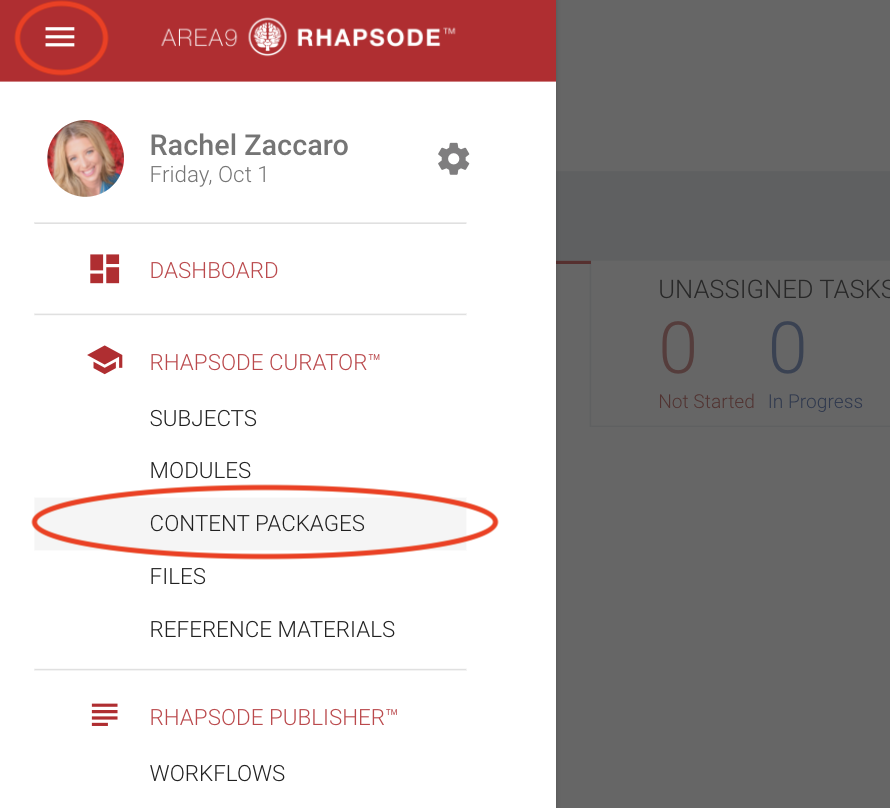
- Sign into Rhapsode Curator, select the Hamburger Menu and then navigate to Content Packages
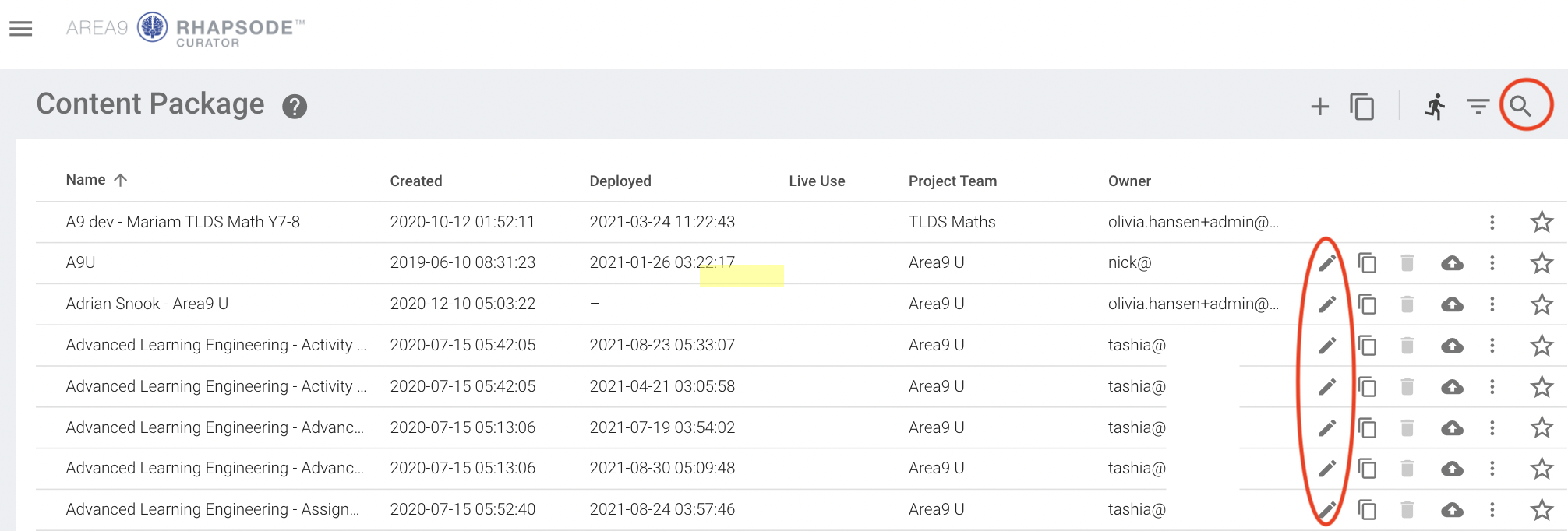
- Click the pencil icon (edit button) on your Content Package (if you have multiple Content Packages you can search by clicking the search icon in the upper right corner)
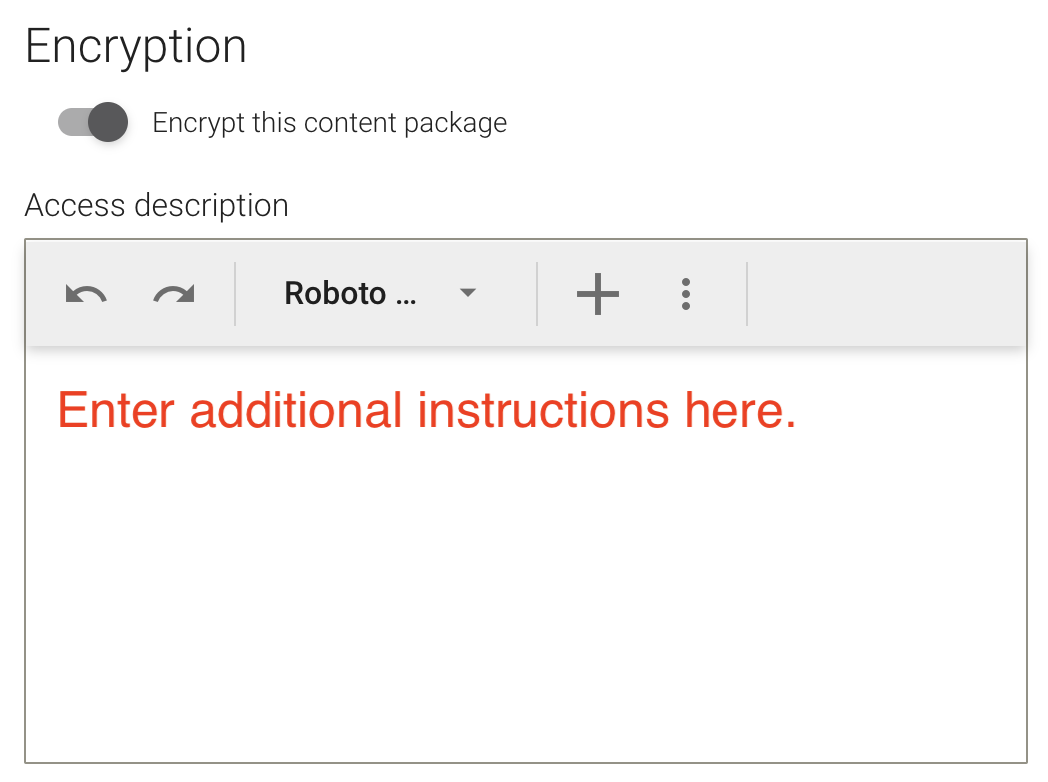
- Scroll Down to Encryption, make sure “Encrypt Content Package” is enabled

- Draft the instructions you would like your students to see when they click on Rhapsode for the first time
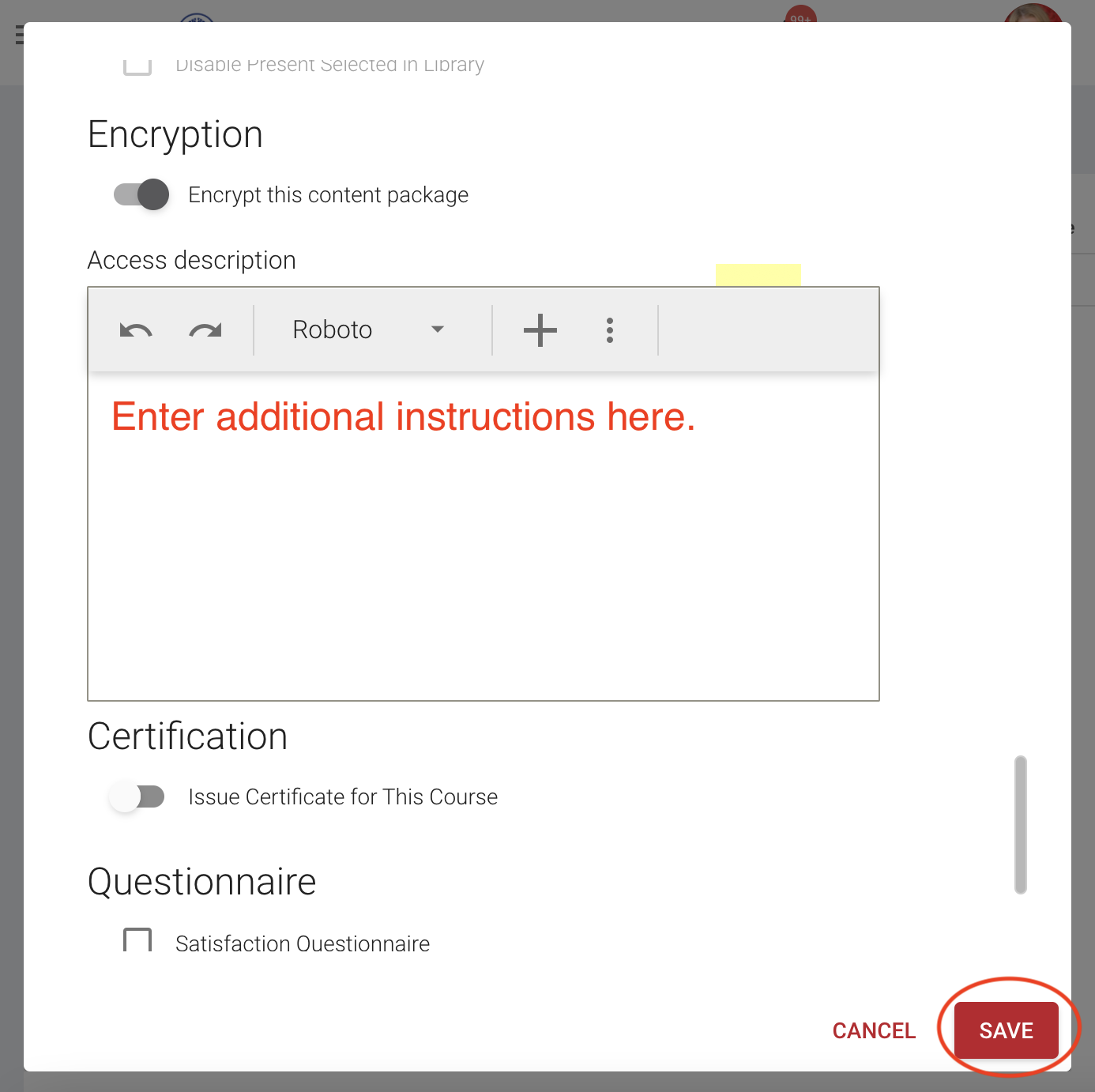
- Click Save
- Deploy the Content Package
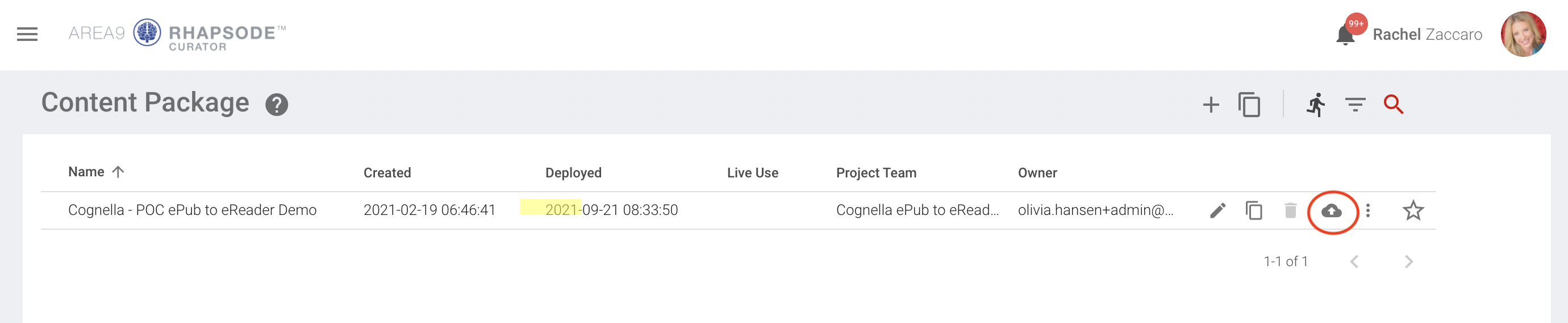
What your students see when they access Rhapsode through their LMS:

After clicking on an assignment they will see the Rhapsode dashboard, inside their LMS:

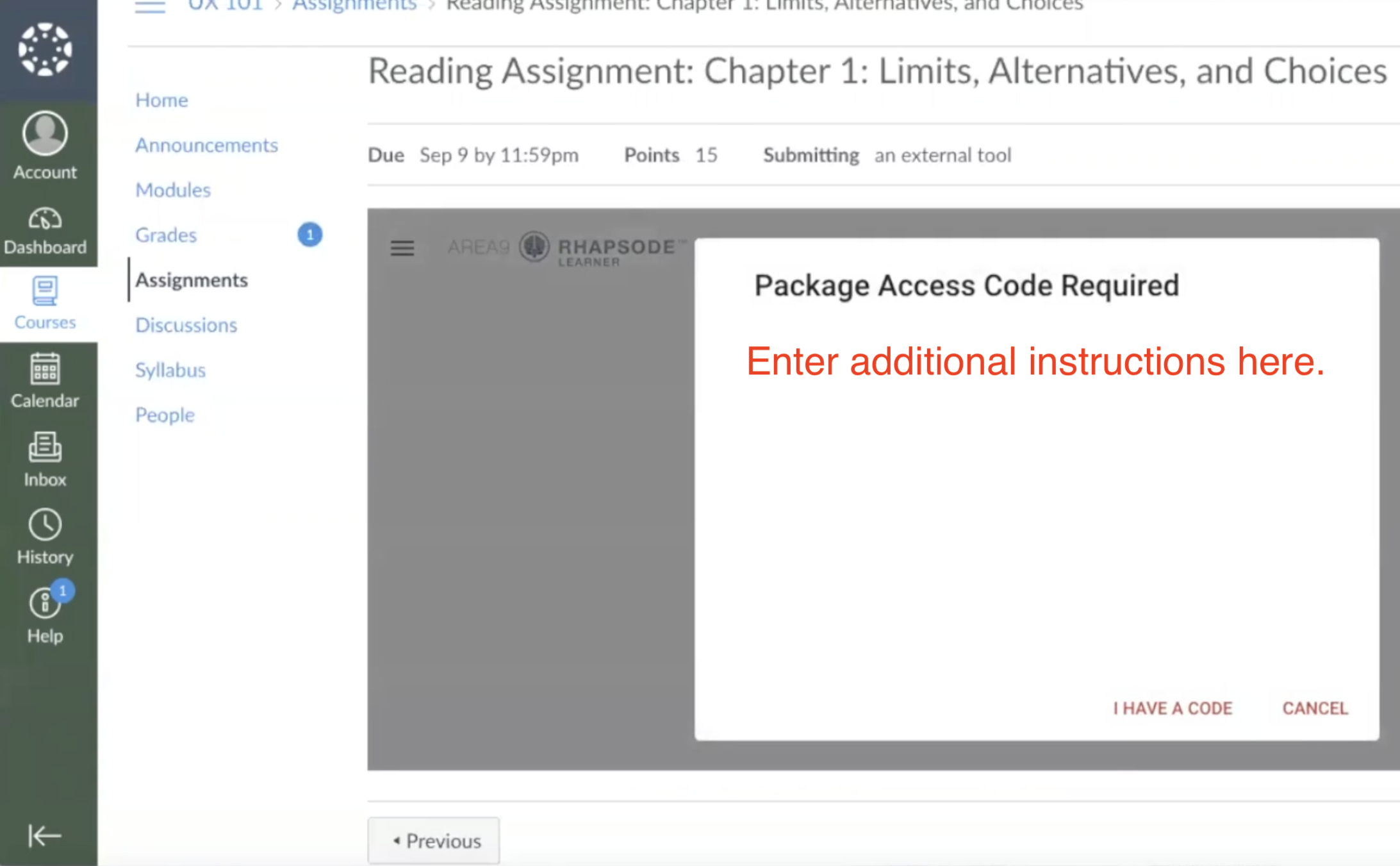
When they click on their first Rhapsode assignment the instructions you created will populate:
Watch the Video Walkthrough of the Above Process: